
I imagine that most every Delphi developer has clicked Project > Clean in the IDE at some point and wondered what it actually accomplished. The help text says “removes generated files from the project, such as object code files,” which is technically true and also tells you almost nothing. Files get deleted. You hope they were the ones you needed. Marco Cantu chimed in on a 2009 Stack Overflow thread to clarify that Clean is wired through MSBuild and removes both intermediate files and final outputs. That helped a little. Another answer on the same thread listed what Clean does not remove: DCUs outside the project directory, .map files, .res files compiled from .rc, .drc, .tlb. That helped less.
So eventually you probably wrote your own clean.bat or some such name. Maybe you have three or four of them, scattered across project folders, each slightly different, each maybe fixing whatever the last one missed. That worked. It still works. But over the years the list of things you wished it could do quietly grew: dry-run mode, exclude directories, exit codes for CI, a way to recover something you accidentally deleted, a config file so you stop hand-editing the same del lines in every repo.
delphi-clean is that script, with the bells and whistles already on.
Three levels, cumulative
The first thing to know is that there is one knob, a clean level:
1
2
3
delphi-clean -Level basic     # default
delphi-clean -Level standard
delphi-clean -Level deep
basic removes the transient stuff you almost always want gone, including things like: .dcu, .identcache, .bak, .tmp, .tvsconfig, .stat, and __history directories. It is pretty safe and likely what you want all the time. It is the kind of cleanup that should never surprise anyone.
standard is basic plus some actual build outputs: compiled binaries (.exe, .bpl, .dcp, .bpi), debug symbols (.map, .rsm, .tds), platform output directories (Win32, Win64, WinARM64EC, Debug, Release, the macOS and iOS and Android equivalents), and cross-platform object files (.o, .a, .dylib) for the Linux and macOS targets. This is the level you reach for when you want a from-scratch rebuild.
deep adds the aggressive stuff: backup files (*.~*), FinalBuilder logs and lock files, desktop layout files (.dsk), TestInsight settings, project-local overrides (.dproj.local, .groupproj.local), *.lib, *.mab. This is the “I want this directory to look the way it did when I first cloned it” level.
The cumulative model matters because it means you do not have to remember three different file lists. You remember one list and which level you are calling. Default is basic because basic should not bite you. standard is the level you will call most often once you trust it. deep is the reset button.
Files that are sometimes needed (things like .dll, .obj) are not in any level by default. These are legitimate build outputs in some projects and legitimate source-controlled dependencies in others. The conservative default leaves them alone and you can easily add them with -IncludeFilePattern if you want them gone, like this:
1
2
delphi-clean -Level standard -IncludeFilePattern '*.dll'
delphi-clean -Level standard -IncludeFilePattern '*.dll','*.obj'
The same goes for .res files as they compile from .rc and are sometimes regenerated, sometimes committed to the repo. The tool does not assume.
Try before you delete
Three options keep accidents from being expensive.
-WhatIf shows you what would be deleted, without deleting anything:
1
delphi-clean -Level standard -WhatIf
The output lists every file and directory that matches, plus a summary of how many items and how many bytes would go. Run it before any deep clean you have not done in a while. Run it on any new project before the first time you trust the tool with it.
-Check is similar to -WhatIf but its job is to answer a simple yes/no question instead. It performs the same scan, but the answer comes through the exit code - 0 if the repo is clean, 1 if there are files to remove. This can be useful in CI to enforce that a build does not commit artifacts back to the repo:
1
2
3
4
delphi-clean -Check -OutputLevel quiet
if ($LASTEXITCODE -ne 0) {
    throw "Repository contains build artifacts"
}
-RecycleBin sends matched items to the platform’s trash instead of permanently deleting them. Windows Recycle Bin, macOS ~/.Trash/, Linux’s FreeDesktop trash spec.
1
delphi-clean -Level deep -RecycleBin -RootPath C:\build\myproject
-RecycleBin and -WhatIf combine, which means you can preview a recycle-bin run if you want both belt and suspenders.
Set it once
The configuration file is what stops you from typing the same flags on every invocation, and stops your CI from drifting away from your dev shell.
delphi-clean reads JSON config from up to four places, in order of increasing priority:
1
2
3
4
5
$HOME/delphi-clean.json              user-level defaults
<RootPath>/delphi-clean.json         project-level (possibly committed with the repo)
<RootPath>/delphi-clean.local.json   local user overrides (likely add to .gitignore)
-ConfigFile <path>                   explicit file, often for CI
command-line flags                   always win
Here is an example project-level delphi-clean.json checked into the repo:
1
2
3
4
5
6
7
{
  "level": "standard",
  "outputLevel": "summary",
  "includeFilePattern": ["*.res"],
  "excludeDirectoryPattern": ["assets"],
  "searchParentFolders": false
}
Note the basic rules: scalars override at the highest priority and arrays append across sources. So if your $HOME/delphi-clean.json excludes vendor* and the project’s delphi-clean.json excludes assets, both exclusions apply. Configuration like this is the thing that batch scripts can theoretically do (with enough if defined and arg parsing) but in practice never do, because once you have made it work for one project you do not want to do it again for the next.
For the curious, you can inspect the merged result without scanning anything with a -ShowConfig parameter:
1
delphi-clean -ShowConfig
ShowConfig tells you exactly which files were loaded, which settings are active, and which were overridden. Useful when your CI behavior disagrees with your local shell and you need to know which config layer is talking.
Quiet enough for CI, talkative enough for humans
-OutputLevel adjusts the chatter:
1
2
3
detailed (default) - full per-item list plus summary
summary            - totals only
quiet              - only warnings and errors
-Json switches the entire output to a single structured object - mode, file counts, directory counts, bytes freed, duration, per-item records - suitable for piping into another tool or parsing in a CI step. Warnings and errors are never suppressed regardless of mode.
Exit codes are designed to be meaningful:
1
2
3
4
0 = success or clean (Check found nothing)
1 = dirty (Check found artifacts)
2 = partial (some items could not be deleted or recycled)
3 = fatal (bad root path, unsupported platform, scan error)
A CI step that wants to enforce a clean working tree post-build can call -Check, look at the exit code, and decide whether to fail the build. A dev who runs the tool interactively will mostly only care about exit 0 versus anything else.
What it replaces, what it does not
delphi-clean could be used to slowly replace your various clean.bat files that are scattered across your projects.
What it does not replace: the IDE Clean button itself, which still has its place for quick in-IDE work. The handful of one-off rm commands you might still want to keep for very specific situations will still be handy.
Summary
delphi-clean can be used standalone by simply dropping it on your PATH, pick a level, and decide whether you want a config file or not. It is also bundled within the larger delphi-powershell-ci module which has slowly been growing this year. It now includes a configurable pipeline of Clean, IncVer, Build, Run, Coverage, CallGraph, CodeSign, Copy, and Compress actions with more development expected. It will never replace FinalBuilder as the ultimate Delphi automation tool that every company leveraging Delphi should purchase, but you can easily combine the two and Run a FinalBuilder script within a larger CI pipeline.
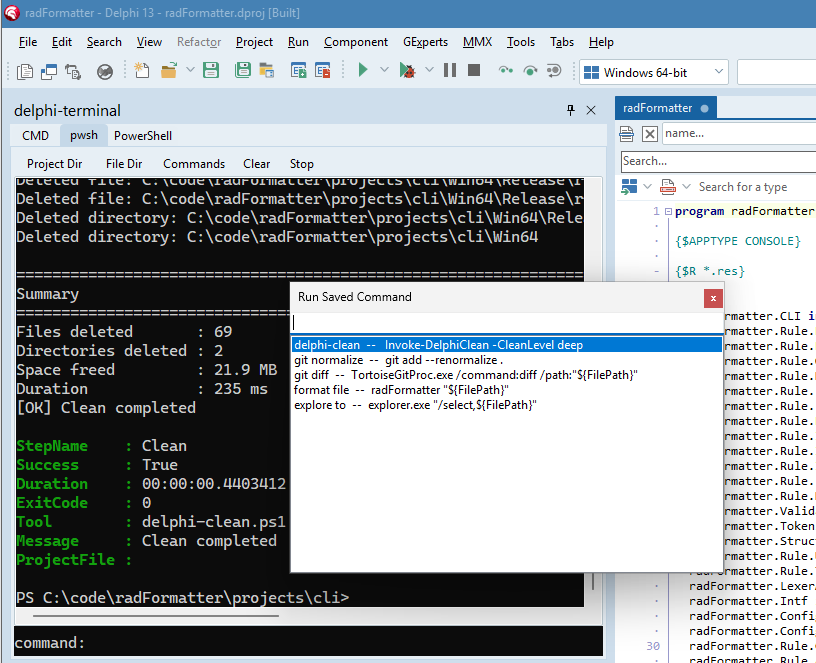
Over time, you might want to combine delphi-clean, or delphi-powershell-ci, with delphi-terminal so you can easily run a single action like delphi-clean, or a full CI build pipeline without leaving RAD Studio (and without having to mess around with project Build Actions which can be quite finicky.)
Here is a screenshot example of delphi-clean inside a delphi-terminal window within RAD Studio. Click ‘Commands’ and double-click the ‘delphi-clean’ entry and it will be executed without leaving RAD Studio. (Note the bundled pipeline prefixes each action’s parameters to keep them unambiguous across steps, so the standalone script’s -Level becomes -CleanLevel here, since it is running through the delphi-powershell-ci module.)
If you are working inside and outside of RAD Studio at the same time (with AI agents, VS Code, or whatever else that keeps you outside of RAD Studio), you will eventually run into bad builds slowing you down. RAD Studio doesn’t always detect a file changed from the outside, especially when you don’t have all of your source files added to the project and rely on search paths. You are certain to waste time, braincycles, and AI tokens rebuilding for missed changes. delphi-clean introduces a single, scripted action that could help you start to automate your build process, one piece at a time.