
There is a strong possibility that most Delphi developers keep one or two (or more) console windows open while working in the IDE. Build scripts, git, a quick PowerShell one-liner, whatever tool you are using at the command prompt - it all lives in a separate window that you alt-tab to all day long. I finally hit a point of alt-tab-fatigue so I built a terminal that docks inside RAD Studio instead.
delphi-terminal is a dockable panel that hosts three persistent shell sessions - CMD, pwsh (PowerShell 7+), and legacy Windows PowerShell - right inside the IDE, with a command history and a working directory that follows your active project. It is MIT-licensed and part of the Continuous-Delphi family of tools.
What I actually built it for
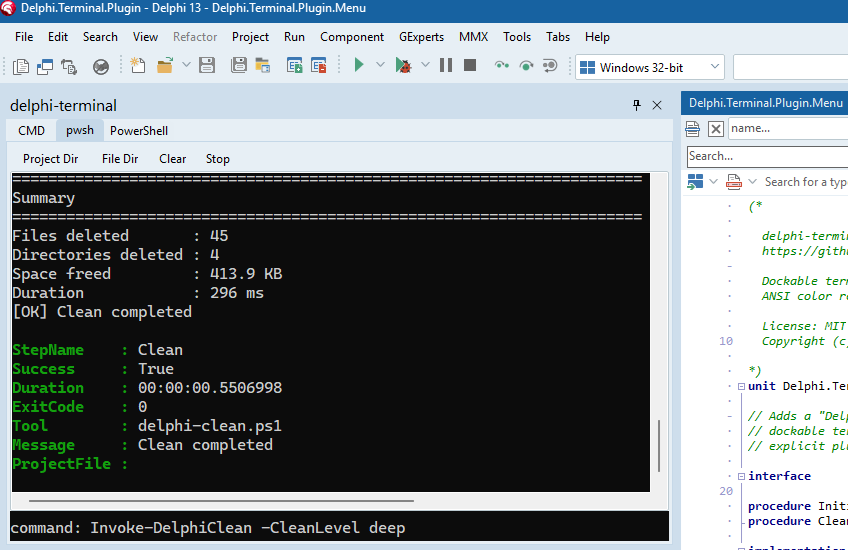
I mostly built this to run the Continuous-Delphi PowerShell scripts like delphi-clean, delphi-incver, and the rest of the toolchain - without leaving the editor. That is its job - runs a command, stream the output back, and renders the colors the tool emits. For that it works well, and that is what the screenshot above is doing: cleaning one of my own repos with delphi-clean, in color, docked next to the code.
Note that it is not a full terminal emulator. But for “run a command and watch what it prints,” it does the job and gets out of the way.
What it does
Three shells, one panel. CMD, pwsh, and legacy PowerShell each get their own tab in a single dockable window. For pwsh, delphi-terminal renders using the Windows Terminal “Campbell” palette - the standard 16 colors, the 256-color cube, and 24-bit RGB, foreground and background.
It also follows your project. When you switch the active project in the IDE, the terminal changes its working directory to match (you can scope that to the active tab or all tabs). There are also Project Dir and File Dir toolbar buttons that quickly jump the shell to the current project folder or the folder of the file you are editing.
The Stop button acts as your CTRL+C and it interrupts a runaway command while keeping the session alive so you can keep typing. Ctrl+L or the Clear button wipes the output without restarting the shell.
Up and Down keys walk your command history. Ctrl+Tab and Ctrl+Shift+Tab cycle the tabs, and Ctrl+1 / Ctrl+2 / Ctrl+3 jump straight to that tab number.
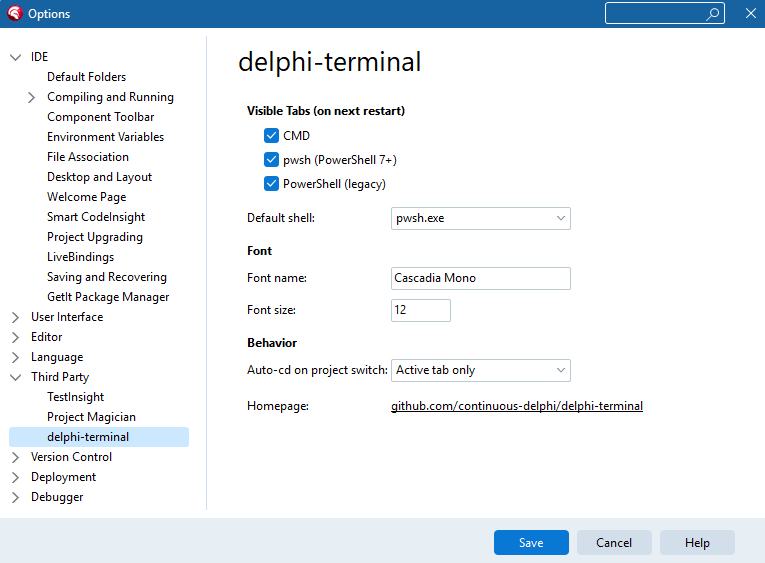
Tools > Options > Third Party > delphi-terminal configuration screen lets you pick which tabs appear, the default shell, the font (Cascadia Mono by default) and size, and the auto-cd behavior. Settings persist in the registry, and the dockable form remembers where you docked it across IDE sessions.
A note on the design
For the developers who care how it is put together: all of the real work lives in one self-contained TFrame. The IDE plugin is thin ToolsAPI plumbing around that frame - a dockable form, a View menu item, an Options page - and there is a standalone VCL demo app that hosts the identical frame for debugging outside the IDE.
The output path is built to reduce the possibility of a chatty command from freezing the IDE: a background reader thread coalesces output, the UI renders it in batched passes, and the scrollback is trimmed automatically once it gets large.
What it is not
delphi-terminal is a pipe-backed, line-oriented console. It runs a command and shows what that command prints. It is not a pseudo-terminal, so programs that take over the screen or read input one keystroke at a time will not work in it. That includes interactive, full-screen tools like Claude Code, vim, less, and fzf. They expect a real terminal - cursor addressing, raw key input, the works - and a pipe is not that.
Supporting them properly means Windows Pseudo Console (ConPTY), which is effectively building a small terminal emulator: raw input forwarding, a screen-cell model, a full VT parser, etc. That is obviously a much bigger project, and I might do it someday if I want the distraction. But it is not needed for running scripts and watching their output, which is what I built this for, so it is firmly in the someday-maybe column. If your plan is to run an interactive AI coding agent inside a panel, this is not that tool today. (There are plenty of other choices for that right now.) If your plan is to run your build and your scripts and see the results in color without leaving the IDE, then this should work.
Try it
- Clone the repo from https://github.com/continuous-delphi/delphi-terminal
- Open
projects/ide-plugin/Delphi.Terminal.Plugin.dpkin RAD Studio - Right-click the project in the Project Manager and choose
Install - Open it from
View > delphi-terminal, then dock it wherever you like - Optionally configure it via
Tools > Options > Third Party > delphi-terminal
It targets a reasonably recent RAD Studio. For older versions, remove {$LIBSUFFIX AUTO} from the package; it may compile on older versions, but some newer language elements are used, and older versions are untested.
Issues and ideas are welcome on the repo!
Stay in RAD Studio?
These days the target seems to include staying OUT of the RAD Studio IDE and letting the AI agents take over. Perhaps that will eventually be the norm one day in the future, but for now, many of us still spend much of our days inside of RAD Studio. Hopefully this tool helps those devs a little. I know that I am starting to use it daily and am working on another feature to save me more typing in the near future. The number of alt-tab keystrokes per day has been noticeably reduced. To reduce more alt-tabbing, I will need to create more scripts!