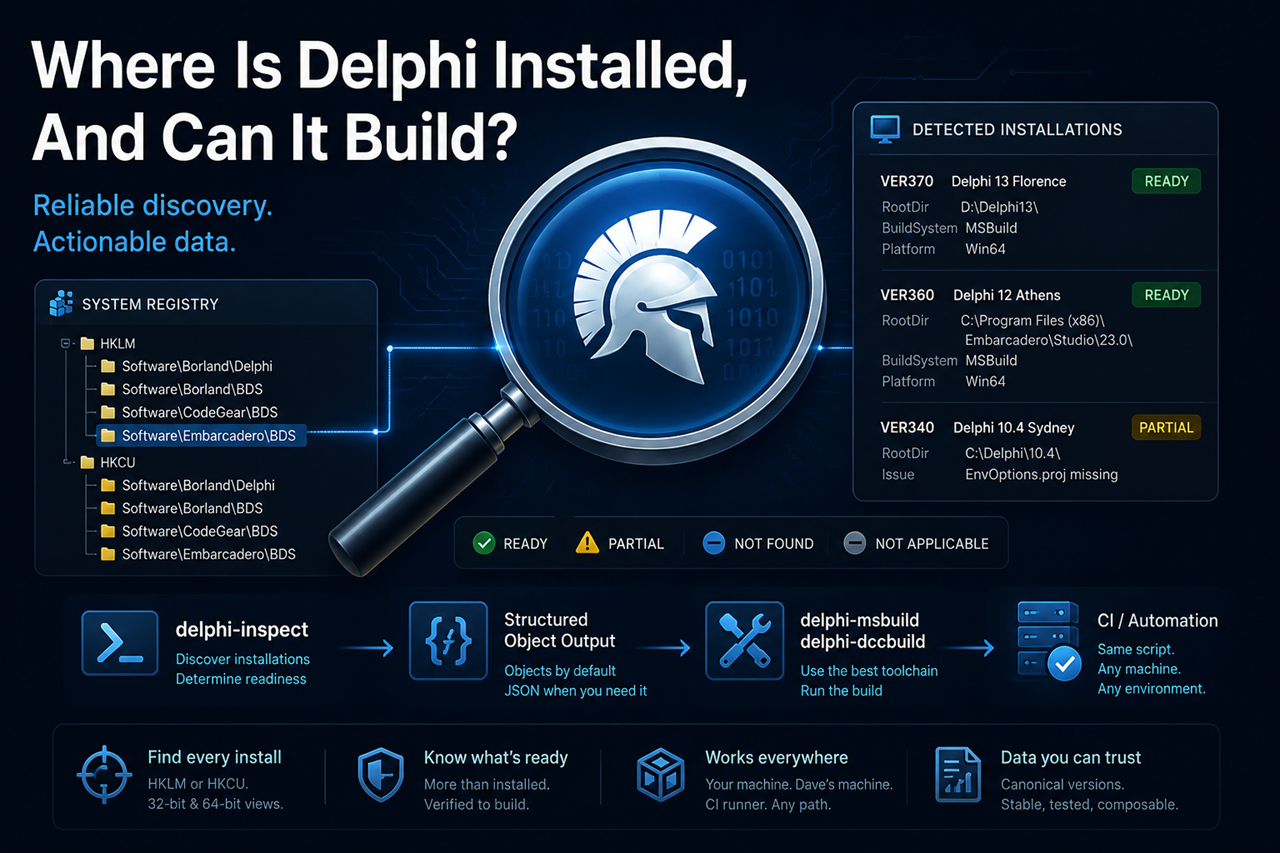
Where is Delphi on this machine? It is a question with more answers than it may appear. On any given Windows box, the registry hive may be under \Software\Borland\Delphi, \Software\Borland\BDS, \Software\CodeGear\BDS, or \Software\Embarcadero\BDS, depending on which generation of Delphi was installed. It may be under HKLM or HKCU. The 32-bit and 64-bit registry views see different things on the same machine. Even when you find the install, “installed” is not the same as “able to build” - a registry entry with a valid RootDir can still be a broken installation if the compiler is missing, or the .cfg file is gone, or the per-user EnvOptions.proj never got populated.
Discovery is the first job any Delphi build script has to do, and most build scripts are overly fragile because the question is harder than it looks. (And you need to tweak your scripts after every major version change.)
delphi-inspect handles discovery as a separate concern. It does not build anything. It tells you what is installed, whether each install is actually ready to compile for a given platform and build system, and where on disk the install lives. Other tools - delphi-msbuild and delphi-dccbuild (or your own tooling) can consume that information to drive the actual build.
What it is
A single MIT-licensed PowerShell script (delphi-inspect.ps1) with six commands, three output formats, and 500+ tests. The test suite covers registry resolution, version aliasing, readiness-state transitions, JSON envelope stability, and PowerShell 5.1/7 compatibility behavior. The script runs on Windows PowerShell 5.1 and PowerShell 7+ (test suite runs only on PowerShell 7+). The six commands offered by the script cover the full discovery surface: tool/dataset metadata (-Version), alias-to-canonical-entry resolution (-Resolve), installation root-directory lookup for a specific version (-Locate), the full list of versions the dataset knows about (-ListKnown), per-version readiness on this machine (-ListInstalled), and the single highest-versioned ready install for a platform and build system (-DetectLatest).
The data the tool resolves against is the canonical compiler-versions dataset from the last post. Discovery plus canonical version data is the whole story.
A friendly first call:
1
2
3
4
5
6
7

delphi-inspect.ps1 -Format text

delphi-inspect  1.4.0
dataVersion     1.2.0
schemaVersion   1.2.0
generated       2026-03-21
No arguments needed. The default action prints version metadata for the tool and the dataset it shipped with, so you know which versions you are working with.
The CI workhorse: -DetectLatest
The command most CI users will reach for first:
1
delphi-inspect.ps1 -DetectLatest -Platform Win64 -BuildSystem MSBuild -Format text
On a machine that has Delphi 12 installed and configured, below would be an example of the text output. (You’ll usually use the Object output with scripting though.)
1
2
3
4
5
6
7
8
9
VER360     Delphi 12 Athens
  readiness                 ready
  registryFound             true
  rootDir                   C:\Program Files (x86)\Embarcadero\Studio\23.0\
  rootDirExists             true
  rsvarsPath                C:\Program Files (x86)\Embarcadero\Studio\23.0\bin\rsvars.bat
  rsvarsFound               true
  envOptionsFound           true
  envOptionsHasLibraryPath  true
-Platform defaults to Win32, -BuildSystem to MSBuild. The defaults are deliberate: that combination has been the most common Delphi CI target by a wide margin. It is easy enough to override any of the inputs when you need something else.
The same call specifying the json output format (via -Format json) returns a structured envelope - ok, command, tool, result - suitable for feeding into another tool or a CI step.
Object output is the default
-Format actually defaults to object, not text. That word matters in PowerShell. The script does not emit strings that you parse with regex; it emits real pscustomobject instances that you can assign, pipe, and filter directly:
1
2
3
4
5
$best = delphi-inspect.ps1 -DetectLatest -Platform Win64 -BuildSystem MSBuild
if ($best -and $best.readiness -eq 'ready') {
    & "$($best.rootDir)bin\rsvars.bat"
    # ... build something
}
There is no parse-the-stdout-with-regex step. There is no flaky text-to-data layer to maintain. Most existing Delphi command-line tooling (like most of my old batch files) resort to scraping raw text outputs; this tool upgrades your game so you no longer have to.
For non-PowerShell consumers, -Format json returns the same stable envelope across every command. Errors swap result for error: { code, message }. A CI step that wants to handle the output generically can do so without per-command parsing.
Readiness has more states than you think
Most discovery tools treat installation as a boolean: present or absent. delphi-inspect uses four states:
readyevery required component is present and resolvablepartialInstallthe registry says it is installed but some component is missing or unverifiablenotFoundthe registry was checked and no entry was foundnotApplicablethis Delphi version does not support the requested platform or build system, so no check was performed
The fourth state is available due to the data integration. If you ask “is Delphi 3 ready to build for Win64?” the answer is obviously always going to be a “no” - but the answer actually is “that combination does not exist.” Win64 came in with Delphi XE2; MSBuild support came in after Delphi 2007. Conflating “this combination is impossible” with “this combination is possible but absent” makes it harder to write build matrices that fail loudly only for the cases that should fail loudly. delphi-inspect consults the dataset’s supportedPlatforms and supportedBuildSystems arrays before doing any registry lookup, and the answer comes back as notApplicable when the combination is impossible by definition.
The partialInstall state earns its keep too. The component fields under it depend on the build system. For DCC: registryFound, rootDirExists, compilerFound, cfgFound. For MSBuild, add rsvarsPath, rsvarsFound, envOptionsFound, and envOptionsHasLibraryPath. That last one is the kind of detail that surfaces silent failures - if EnvOptions.proj exists but has no DelphiLibraryPath populated for the target platform, MSBuild will start a build that fails with cryptic F1026 File not found errors deep into the process. delphi-inspect catches that before the build runs.
One thing the tool deliberately does not claim to do: validate that the paths inside a found .cfg or EnvOptions.proj actually point to real directories. cfgFound: true means the file is on disk - not that the library paths inside it are still valid. A copied installation with stale paths will pass the readiness check and fail at compile time. This is currently documented as a known limitation. We aren’t trying to rebuild RAD Studio - just help developers get the most out of it.
Standalone, submodule, or embedded
delphi-compiler-versions.json is the dataset that powers the lookups and it can be accessed in three ways. When the script runs, it looks for the data in this order:
- A sibling file named
delphi-compiler-versions.jsonwithin the same folder as the script - A submodule path inside the repo (The
continuous-delphitooling preference is to use\submodulesfrom the project root so it looks forsubmodules\delphi-compiler-versions) - An embedded copy compiled into the script body itself. (This is always available as there is a full copy of
delphi-compiler-versions.jsonembedded inside ofdelphi-inspect.ps1.)
The first option is for standalone deployment - drop the script and a JSON file into a folder somewhere, both travel together, both can be updated independently. The second is for repo development, where the submodule pulls the canonical upstream and you always have the latest data. The third is the fallback that makes the script genuinely single-file: even with no JSON anywhere on disk, the embedded dataset means the script still works. Hand someone a single .ps1 and they have a working tool.
The embedded copy gets refreshed by a script in the repo whenever the upstream dataset updates (once or twice a year.) The data inside the script body is never stale by more than that cadence.
Composition
The point of separating discovery from building is that the two can be wired together by the caller. (Each tool does one job and emits stable machine-consumable output for the next stage.) delphi-inspect’s -Locate command is shaped for exactly this:
1
2
delphi-inspect.ps1 -Locate -Name Florence |
  delphi-msbuild.ps1 -ProjectFile 'MyProj.dproj' -Platform Win64
-Locate resolves a version name. You can use "Florence", "Delphi 13", "13 Florence", "Delphi 13 Florence" or "VER370" to resolve its RootDir on this machine. A few of the most common aliases are supported for each version and you can use the one that you personally use the most to refer to the version (if we’re missing your favorite, create a PR or a ticket and we’ll consider adding it.) delphi-msbuild consumes the located install and runs the build. The same script runs on your machine, on Dave’s machine where Delphi lives in D:\Delphi13, and on the CI runner where it lives wherever the runner’s install image dropped it.
delphi-inspect is MIT licensed. If you are hand-crafting build scripts and want to stop hardcoding paths, drop the script in. If you are wiring up CI and want a clean discovery step before MSBuild runs, pipe its output. If you are upgrading off an older batch-file toolchain you have been maintaining for fifteen years, this is a place to start.
The first post argued that compiler versions are data, not code. This post argues that discovery is data too.
Each Continuous-Delphi tool is being built to stand on its own, but the greater payoff comes when the tools are wired together into larger automation workflows. The last few months have been spent building the first suite of tools, with more already in progress - follow the blog series as the Continuous-Delphi ecosystem continues to grow.