
Here is something I do many times a week within RAD Studio. I want to see what changed in a file that I am editing, so I right-click the file in the Project Manager, then click Show in Explorer, wait for the Explorer window to show, right-click the file in Explorer, use the mouse to select and then click on the TortoiseGit menu item, then mouse to select and click on the Diff menu item to bring up the diff window. After looking at the changes, I eventually close the Explorer window that I never actually wanted. Six clicks, multiple mouse movements, and two windows displayed, every single time. (And that doesn’t include the hassle introduced by the wonderful people at Microsoft who hid most of my useful right-click menus by default.)
After today’s changes, here is the same procedure now with the delphi-terminal window docked: click Commands to bring up the Run Commands window, use mouse to select and then ctrl-double-click the git diff entry and the TortoiseGit diff window immediately opens. The command palette closes itself. One click and a double-click to get the same result as six clicks that include an extra window to deal with. To me, this is a better feature than the core terminal window itself!
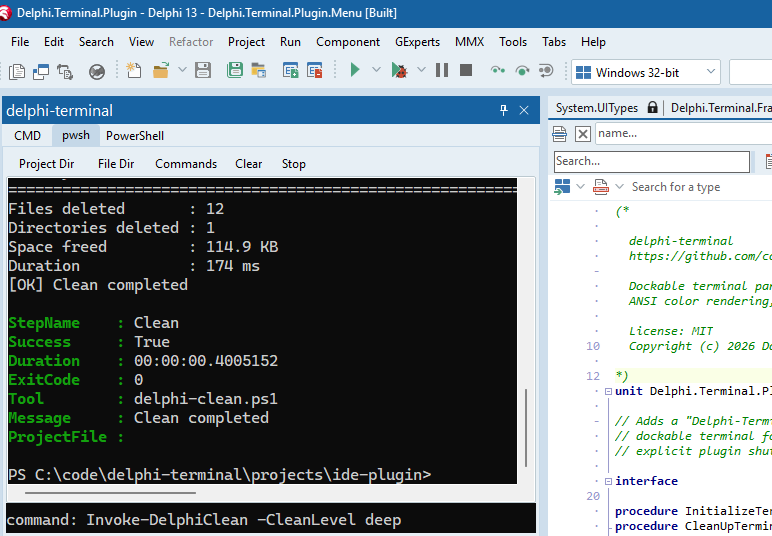
(If you missed the first post, delphi-terminal is a dockable console for RAD Studio and it includes CMD, pwsh, and legacy PowerShell inside a dockable panel within the IDE. The announcement is here.)
And, yes, I should use the File History feature already built-in to RAD Studio for this particular task. I really do not know why I do not use it more often other than habit. File diff is one of the first things I added to my Saved Commands list so that’s why I mention it here. I am sure there are a bunch of features that RAD Studio offers that many developers do not use for one reason or another (some perhaps legitimate, some like mine are probably not.) The point is that Saved Commands can collapse many repetitive multi-click command line chore down to a click or two while sitting in the IDE.
How it works
Press Ctrl+P while in the Command textbox, or click the Commands button, and a palette opens with a search box and your list of saved commands. Optionally start typing text to filter the list. (The list is also scoped to the active tab’s shell as some commands obviously have to be customized or limited by shell.)
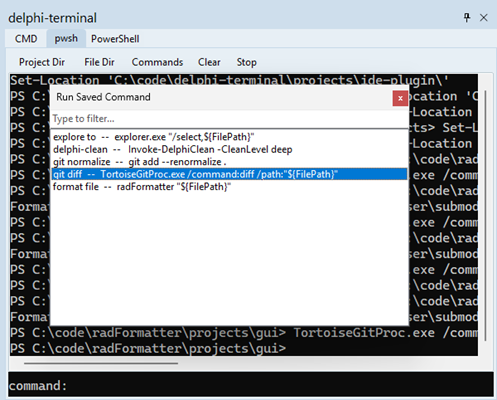
What happens when you select a command is up to you:
- Enter (or double-click) drops the command into the input line so you can tweak it, then Enter again runs it. This is to edit/confirm the command before running it.
- Ctrl+Enter (or Ctrl+double-click) runs the command immediately with no stop at the input line. This is the power-user path, and it is the one I typically use for the git diff above.
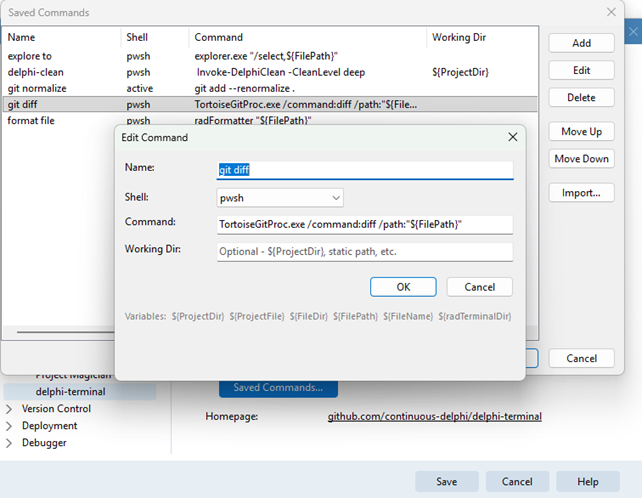
You manage the list from Tools > Options > Third Party > delphi-terminal > Saved Commands...
- add, edit, delete, and reorder. Each command is just a name, a target shell (Active, CMD, pwsh, or PowerShell), the command text, and an optional working directory.
Project-aware commands
Commands understand a handful of variables that resolve from the IDE at the moment you run them:
${ProjectDir}- the active project’s directory${ProjectFile}- the full path to the active.dproj${FileDir},${FilePath},${FileName}- the active editor file (just the directory name portion, the full file path, or just the filename portion.)
They are case-insensitive, and they expand at execution time, so the same saved command does the right thing in whatever project is currently active. My git diff command is just a TortoiseGit launch pointed at ${FilePath}, something like:
1
TortoiseGitProc.exe /command:diff /path:${FilePath}
Sharing command sets with bundles
Once you have built up a set of commands worth keeping, you will want them on your other machine, and your teammates will want them too. That is what bundles are for.
A bundle is a small JSON file with a prefix, a description, and a list of commands. The prefix is a namespace. The Continuous-Delphi toolchain ships as the cd. bundle:
1
2
3
4
5
6
7
8
9
{
  "prefix": "cd.",
  "description": "Continuous-Delphi PowerShell toolchain commands",
  "commands": [
    { "name": "cd.clean",  "shell": "pwsh", "command": "delphi-clean", "workdir": "${ProjectDir}" },
    { "name": "cd.build",  "shell": "pwsh", "command": "Invoke-DelphiBuild -ProjectFile ${ProjectFile}", "workdir": "${ProjectDir}" },
    { "name": "cd.incver", "shell": "pwsh", "command": "Invoke-DelphiIncVer", "workdir": "${ProjectDir}" }
  ]
}
Import it from the Saved Commands dialog and you have cd.clean, cd.build, and cd.incver a Ctrl+P away. The clever bit is reimport: importing a bundle replaces every command whose name starts with that prefix, and leaves everything else alone. So updating to a newer cd. bundle swaps in the new commands without touching the ones you wrote yourself. Your team can ship a myteam. bundle the same way.
The full format is documented in command-bundles.md.
Summary
delphi-terminal started as just a way to do more inside the IDE. Saved Commands is about not doing the same six clicks for the thousandth time. I am still working through my own list of repetitive tasks - eventually I hope to end up with a larger list of my own Saved Commands.
V1 of delphi-terminal including Saved Commands was posted earlier today. Issues and ideas welcome, as always! I’m also working on some minor changes to allow it to build on 10.2 or later. (Thomas Mueller, aka dummzeuch, reported that he had it compiling in 10.2 with just a few tweaks.)